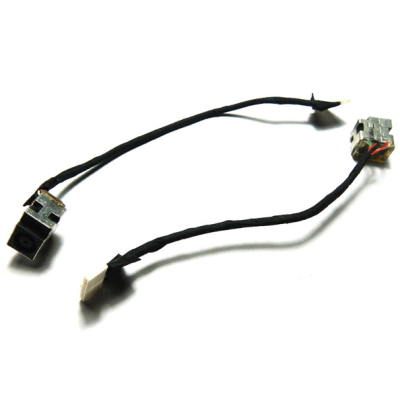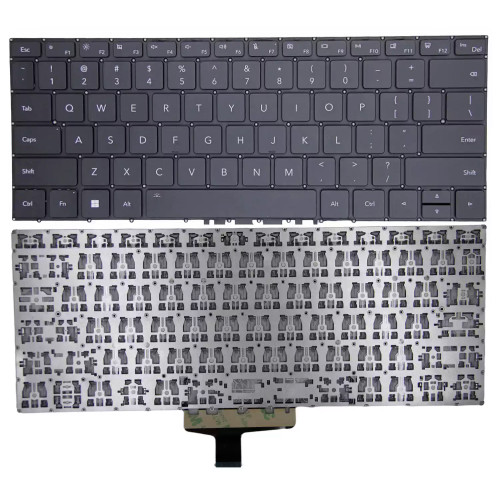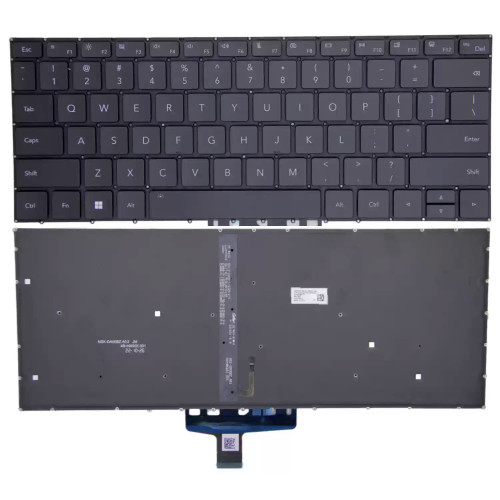

Complete specifications for reference:
350401C00
350401C00-600-G
350401U00
350401U00-11C-G
350401P00
350401P00-GEK-G
350404E00-GG2-G
Шлейф 7200062
606586-001
609406-001
595196-001
HP CQ56
CQ62
G56 G62
G62T
How to verify your screen type: Check your laptop's specifications online, look at the original cable's connector – if it has more than 30 pins (for eDP) or extra separate wires, it is likely a touch cable. Also, check the Device Manager under "Human Interface Devices" – if a touchscreen is listed, your screen supports touch.
If unsure, contact our support with your laptop's full model number and the part number printed on your original cable.
How to check your original cable: Look for printed markings on the cable (e.g., "30P 0.5mm") or measure with a caliper if you have one. You can also count the pins on the connector carefully.
Important: The cable must match the part number of your original cable or be listed as a compatible alternative. Using an incompatible cable may result in:
Always refer to the cable's specifications and compare with your laptop's service manual.
Warning: The LCD cable is extremely fragile – avoid sharp bends (especially at 90° angles), and never pull on the cable itself; always hold the connector.
Access requirements:
The cable is often one of the first components to fail in laptops due to repeated hinge flexing – always inspect the old cable for visible wear at the hinge area.
Connection steps:
Do not force the connector – if it does not go in easily, check orientation and ensure no pins are bent.
Critical precautions:
Troubleshooting if the display does not work after installation:
Quick diagnostic tip: If you have access to an external monitor, connect it to the laptop. If the external display works correctly, the issue is likely the LCD cable or the panel itself. If external display also has issues, the graphics chip or motherboard may be the problem.
If the problem persists, contact our support with your laptop model and the exact part number of your original cable.