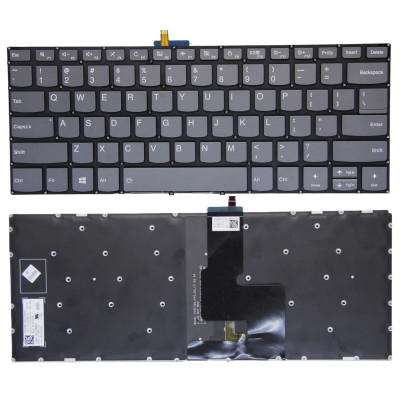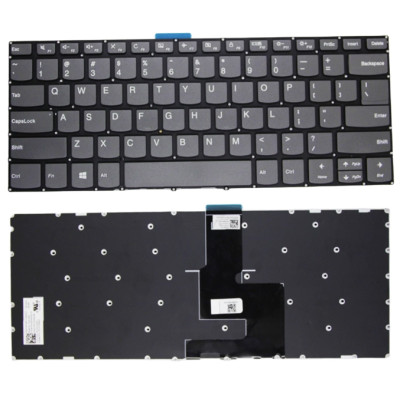
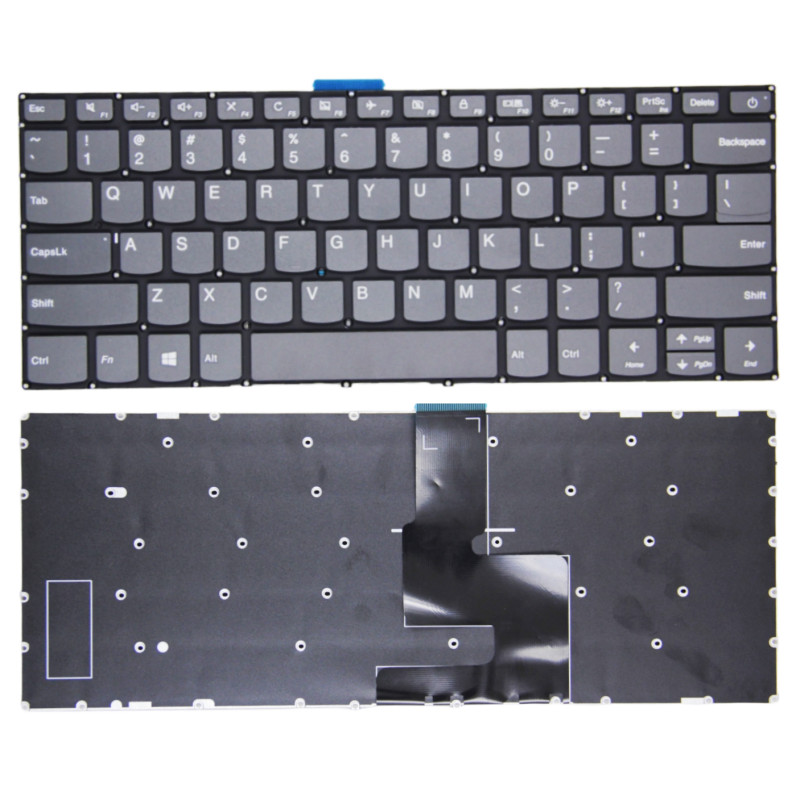
Complete specifications for reference:
5CB0N67352
5CB0N67378
5CB0N67391
5CB0N67401
5CB0N67405
5CB0N67455
5CB0N67612
5CB0N67631
5CB0N67644
5CB0N67654
5CB0N67759
5CB0N67767
5CB0N67811
5CB0N67991
5CB0Q64197
5CB0Q64257
5CB0Q64291
5CB0Q64329
5CB0Q64337
5CB0Q64348
5CB0Q64375
5CB0Q64376
5CB0R07520
5CB0R07555
5CB0R07586
5CB0R07637
5CB0R07641
5CB0R07700
5CB0R34943
5CB0R39230
5CB0R42569
5CB0R42573
5CB0R57276
5CB0R57321
5CB0S18382
5CB0S18413
5CB0S18444
5CB0S18475
5CB0S18506
5CB0S18538
5CB0S18570
5CB0S18602
5CB0X56560
5CB0X56590
5CB0X56620
5CB0X56650
5CB0X56680
5CB0X56710
5CB0X56740
5CB1C04985
5CB1C05015
5CB1C05046
5CB1C05076
5CB1C05106
5CB1D67067
5CB1D67098
5CB1D67129
5CB1D67205
5CB1D67236
5CB1D67267
5CB1D67384
8SSN20M61761
9Z.NDSBN.A06
9ZNDSBN.B01
L1CZ88E002M
L1Z88E002A
NSK-BZBBN
PC4CB-POR
PC4CB-PT
PK1314D2B00
PK131DZ3A15
PK131YM5B14
PK131YN3B00
SG-86380-2PA
SM20M61697
SN20M61523
SN20M61532
SN20M61632
SN20M61658
SN20M61697
SN20M61733
SN20M61755
SN20M61761
SN20M61969
V161320AK1
V161320AK1-P0
Lenovo IdeaPad 330S-14AST 81F8
Lenovo IdeaPad 330S-14AST U
Lenovo IdeaPad 330S-14AST D
Lenovo IdeaPad 330S-14IKB 81F4 81JM
Lenovo IdeaPad 330S-14IKB U
Lenovo IdeaPad 330S-14IKB D
Lenovo Yoga IdeaPad 520-14IKB 80X8 80YM 81C8
Lenovo Yoga IdeaPad 720-15IKB 80X7
Lenovo IdeaPad S340-14API 81NBLenovo IdeaPad S340-14IIL 81VVLenovo IdeaPad S340-14IML 81N9Lenovo IdeaPad S340-14IWL 81N7Lenovo V130-14IGM 81HMLenovo V130-14IKB 81HQLenovo V330-14ARR 81B1Lenovo V330-14IGMLenovo V330-14IKB 81B0Lenovo V330-14ISK 81AYLenovo IdeaPad 3 14ADA05 81W0Lenovo IdeaPad 3 14ARE05 81W3Lenovo IdeaPad 3 14IGL05 81WHLenovo IdeaPad 3 14IIL05 81WDLenovo IdeaPad 3 14IJL05 82MKLenovo IdeaPad 3 14IML05 81WALenovo IdeaPad 3 14ITL05 81X7Lenovo IdeaPad 14SARE 2020 82CBLenovo IdeaPad 14SIIL 2020 81WDLenovo IdeaPad 14SIML 2020 81WA
Important: Layouts are not interchangeable – the key positions, Enter key shape, and modifier key sizes vary. Installing a US keyboard on a UK laptop will result in some keys not matching the keycaps, and the operating system may map the keys incorrectly (though you can change the keyboard layout in software).
How to verify: Check your original keyboard – look for the Enter key shape (wide horizontal vs tall vertical) and the position of the backslash key. If unsure, send us a photo of your original keyboard and we will confirm the layout.
If you need backlight, please choose a backlit version from our store.
If the cable has a reinforcing strip (a thicker plastic piece at the end), ensure this strip is positioned correctly – it usually indicates the insertion depth and orientation.
If you are unsure about the correct orientation, our installation video and photos can guide you – or contact our support for assistance.
Yes – please verify the following physical attributes to ensure a perfect fit:
Part number (PN) check: The PN on the back of the keyboard may differ from your original, but we guarantee full compatibility if the model and layout match. If you are unsure, send us a photo of the back of your original keyboard (showing the PN sticker) and we will confirm.
Important note on model variants: Some laptop models have different keyboard variants depending on the region and configuration (e.g., some have backlit, some do not; some have a fingerprint reader, some do not). Always check your original keyboard's features before ordering.
If you are unsure, contact our support with your laptop's exact model number and a photo of your original keyboard – we will confirm compatibility for you.
The keyboard connects to the motherboard via a ribbon cable that passes through a slot in the C Cover, plugging into a ZIF connector on the motherboard (usually labelled KEYBOARD, KBD, or J_KB).
Access: To replace the keyboard, you may need to remove the bottom cover (D Cover) or the bezel around the keyboard – depending on the model. Some laptops require removing the entire palmrest (C Cover).
Always consult your laptop's service manual for the specific removal method – forcing the keyboard can damage the clips or the C Cover.
Connection procedure:
If the keyboard has a separate backlight cable:
Do not force the cable – if it does not go in easily, check the orientation. Bent pins on the motherboard header can be difficult to repair.
Note: Keyboard replacement methods vary by laptop model. The steps below are general – refer to your laptop's service manual for model‑specific instructions.
For top‑mount keyboards (most common):
For bottom‑mount keyboards:
Common mistakes to avoid:
If you are unsure about any step, watch our installation video or consult your laptop's service manual.
Critical precautions:
Troubleshooting after installation:
If the problem persists: Contact our support with details about which keys are not working and photos of your keyboard installation – we will help diagnose if the keyboard is defective or incompatible.
For most laptops, no driver installation is needed – keyboards are standard HID (Human Interface Device) and are automatically recognized by Windows, macOS, and Linux.
However, there are a few exceptions:
Step‑by‑step for Windows users:
If you are using Linux or macOS, the keyboard should work plug‑and‑play – you may only need to adjust the layout settings in the system preferences.