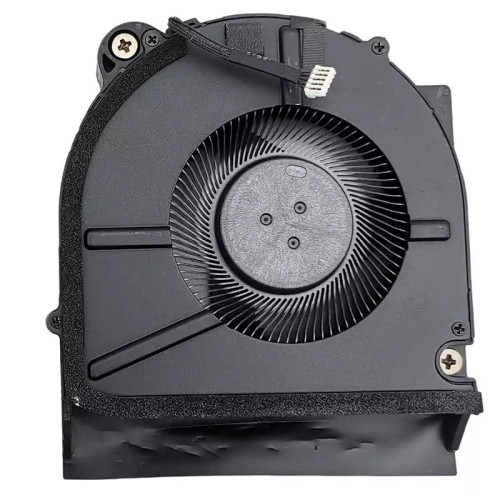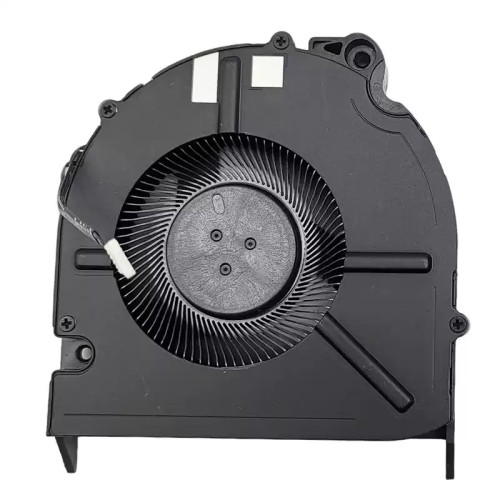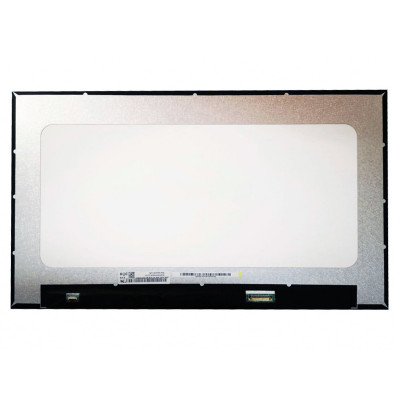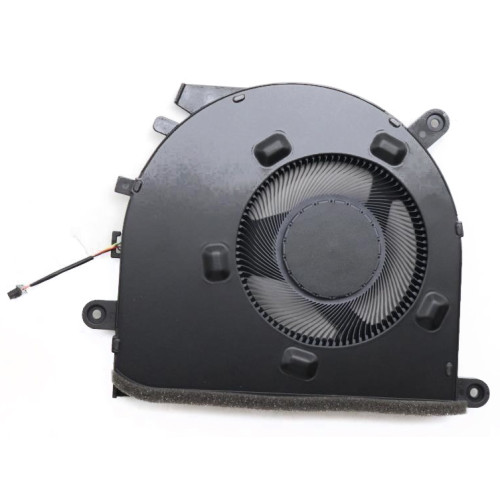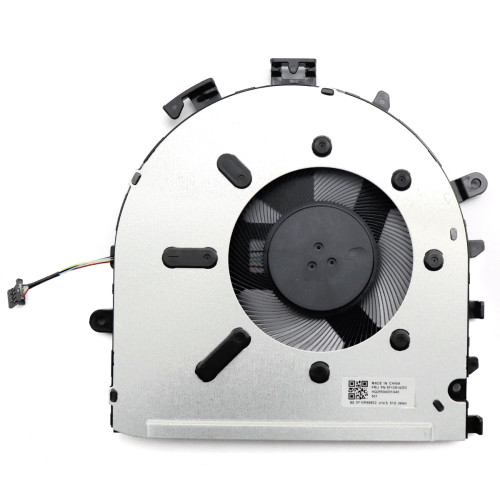

Complete specifications for reference:
Acer Aspire A115 Series
Acer Aspire A115-31G
Acer Aspire A115-31K
Acer Aspire A115-31KG
Acer Aspire A315 Series
Acer Aspire A315-22
Acer Aspire A315-22G
Acer Aspire A315-22K
Acer Aspire A315-22KG
Acer Aspire A315-23
Acer Aspire A315-23G
Acer Aspire A315-34
Acer Aspire A315-34G
Acer Aspire A315-34K
Acer Aspire A315-34KG
Acer Aspire A315-35
Acer Aspire A315-35G
Acer Aspire A315-42
Acer Aspire A315-42G
Acer Aspire A315-42K
Acer Aspire A315-42KG
Acer Aspire A315-54
Acer Aspire A315-54G
Acer Aspire A315-54K
Acer Aspire A315-54KG
Acer Aspire A315-55
Acer Aspire A315-55G
Acer Aspire A315-55K
Acer Aspire A315-55KG
Acer Aspire A315-56
Acer Aspire A315-56G
Acer Aspire A315-56K
Acer Aspire A315-56KG
Acer Aspire A515 Series
Acer Aspire A515-43
Acer Aspire A515-43G
Acer Aspire A515-43K
Acer Aspire A515-43KG
Acer Aspire A515-44
Acer Aspire A515-44G
Acer Aspire A515-45
Acer Aspire A515-45G
Acer Aspire A515-52
Acer Aspire A515-52G
Acer Aspire A515-52K
Acer Aspire A515-52KG
Acer Aspire A515-53
Acer Aspire A515-53G
Acer Aspire A515-53K
Acer Aspire A515-53KG
Acer Aspire A515-54
Acer Aspire A515-54G
Acer Aspire A515-54K
Acer Aspire A515-54KG
Acer Aspire A515-56
Acer Aspire A515-56G
Acer Aspire A515-57
Acer Aspire A515-57G
Acer Aspire 1 A115 Series
Acer Aspire 1 A115-31-C2Y3
Acer Aspire 1 A115-31-C0YL
Acer Aspire 1 A115-31-C5M2
Acer Aspire 3 A315-43 ROLE
Acer Aspire 3 A315-23P
Acer Aspire 3 A315-44
Acer Aspire 3 A315-44P
Acer Aspire 3 A315-59
Acer Aspire 3 A315-59G
Acer ChromeBook 315 CB315-3H Series (También puede montar FHD)
Acer Extensa 15 215 Series
Acer Extensa 15 215-21
Acer Extensa 15 215-21G
Acer Extensa 15 215-21K
Acer Extensa 15 215-21KG
Acer Extensa 15 215-22
Acer Extensa 15 215-22G
Acer Extensa 15 215-31
Acer Extensa 15 215-31G
Acer Extensa 15 215-31K
Acer Extensa 15 215-31KG
Acer Extensa 15 215-51
Acer Extensa 15 215-51G
Acer Extensa 15 215-51K
Acer Extensa 15 215-51KG
Acer Extensa 15 215-52
Acer Extensa 15 215-52G
Acer Extensa 15 215-53
Acer Extensa 15 215-53G
Acer Extensa 15 EX215-21
Acer Extensa 15 EX215-21G
Acer Extensa 15 EX215-21K
Acer Extensa 15 EX215-21KG
Acer Extensa 15 EX215-22
Acer Extensa 15 EX215-22G
Acer Extensa 15 EX215-31
Acer Extensa 15 EX215-31G
Acer Extensa 15 EX215-31K
Acer Extensa 15 EX215-31KG
Acer Extensa 15 EX215-51
Acer Extensa 15 EX215-51G
Acer Extensa 15 EX215-51K
Acer Extensa 15 EX215-51KG
Acer Extensa 15 EX215-52
Acer Extensa 15 EX215-52G
Acer Extensa 15 EX215-53
Acer Extensa 15 EX215-53G
Acer Travelmate P2
Acer Travelmate P215 Series
Acer Travelmate P215-51
Acer Travelmate P215-51G
Acer Travelmate P215-52
Acer Travelmate P215-52G
Acer Travelmate P215-53
Acer Travelmate P215-53G
Acer Travelmate P5
Acer Travelmate P50 Series
Acer Travelmate P50-51
Acer Travelmate P50-51G
Acer Travelmate TMP215-51
Acer Travelmate TMP215-51G
Acer Travelmate TMP215-52
Acer Travelmate TMP215-52G
Acer Travelmate TMP215-53
Acer Travelmate TMP215-53G
Acer Travelmate TMP50-51
Acer Travelmate TMP50-51G
Asus CX1500 Series
Asus CX1500
Asus CX1500C
Asus CX1500CK
Asus CX1500CKA
Asus CX1500CN
Asus CX1500CNA
Asus VivoBook F512 Series
Asus VivoBook F512D
Asus VivoBook F512DA
Asus VivoBook F512DK
Asus VivoBook F512F
Asus VivoBook F512FA
Asus VivoBook F512FJ
Asus VivoBook F512FL
Asus VivoBook F512FU
Asus VivoBook F512U
Asus VivoBook F512UA
Asus VivoBook F512UB
Asus VivoBook F512UF
Asus VivoBook F515 Series
Asus VivoBook F515E
Asus VivoBook F515EA
Asus VivoBook F515EA-BR
Asus VivoBook F515J
Asus VivoBook F515JA
Asus VivoBook F515JA-BR
Asus VivoBook F515JF
Asus VivoBook F515JF-BR
Asus VivoBook F515M
Asus VivoBook F515MA
Asus VivoBook F515MA-BR
Asus VivoBook F515EA
Asus VivoBook F515EP
Asus M509 Series
Asus M509B
Asus M509BA
Asus M509D
Asus M509DA
Asus M509DJ
Asus VivoBook X509 Series
Asus VivoBook X509DA
Asus VivoBook X509F
Asus VivoBook X509FA
Asus VivoBook X509FB
Asus VivoBook X509JA
Asus VivoBook X509JB
Asus VivoBook X507 Series
Asus VivoBook X507M
Asus VivoBook X507MA
Asus VivoBook X507U
Asus VivoBook X507UA
Asus VivoBook X507UB
Asus VivoBook X507UF
Asus VivoBook X512 Series
Asus VivoBook X512DA
Asus VivoBook X512DK
Asus VivoBook X512F
Asus VivoBook X512FA
Asus VivoBook X512FB
Asus VivoBook X512J
Asus VivoBook X512JA
Asus VivoBook X512JF
Asus VivoBook X512JP
Asus VivoBook X512U
Asus VivoBook X512UA
Asus VivoBook X512UB
Asus VivoBook X512UF
Asus VivoBook X515 Series
Asus VivoBook X515D
Asus VivoBook X515DA
Asus VivoBook X515E
Asus VivoBook X515EA
Asus VivoBook X515EP
Asus VivoBook X515F
Asus VivoBook X515FA
Asus VivoBook X515J
Asus VivoBook X515JA
Asus VivoBook X515JF
Asus VivoBook X515FP
Asus VivoBook X515K
Asus VivoBook X515KA
Asus VivoBook X515M
Asus VivoBook X515MA
Asus VivoBook X545 Series
Asus VivoBook X545F
Asus VivoBook X545FA
Asus VivoBook X545FB
Asus VivoBook X545FJ
Asus F509 Series
Asus F509J Series
Asus F509JA Series
Asus S512
Asus S512J
Asus S512JA
Asus S512JF
Asus S512JP
Asus VivoBook X515MANS
Asus VivoBook X515U
Asus VivoBook X515UA
Dell Vostro 15 Series
Dell Vostro 15 3500
Dell Vostro 15 3501
Dell Vostro 15 3510
Dell Vostro 15 3515
Dell Vostro 15 3530
Dell Vostro 15 3568
Dell Vostro 15 5568
DELL Inspiron 15 3000
DELL Inspiron 15-3000 Series
DELL Inspiron 3520
DELL Inspiron 15 3520
DELL Inspiron 15-3520 (P112F)
DELL Inspiron 15-3520 (P112F001)
DELL Inspiron 15-3520 (P112F002)
DELL Inspiron 3525
DELL Inspiron 15 3525
DELL Inspiron 15-3525 (P112F)
DELL Inspiron 15-3525 (P112F005)
DELL Inspiron 15-3525 (P112F006)
HP 250 Series
HP 250 G8
HP 250-G8
HP 250 G7
HP 250 G6
HP 250 G5
HP 250 G9
HP 250-G9
HP 255 Series
HP 255 G8
HP 255-G8
HP 255 G7
HP 255 G6
HP 255 G5
HP 255 G9
HP 255-G9
HP 256 Series
HP 256 G8
HP 256-G8
HP 256 G7
HP 256 G6
HP 256 G5
HP Pavilion 15 Series
HP Pavilion 15-CKxxx
HP Pavilion 15-CSxxx
HP Pavilion 15-CXxxx
HP Pavilion 15-DWxxx
HP Pavilion 15-EGxxx
HP 15-FC Series
HP 15-FCxxx Series
HP 15S-EQ000 Series
HP 15S-EQ1000 Series
HP 15S-EQ2000 Series
HP 15S-FQ000 Series
HP 15S-FQ1000 Series
HP 15S-FQ1100 Series
HP 15S-FQ2000 Series
HP 15S-FQ4000 Series
HP Pavilion 15-EG000 Series
HP Pavilion EG0001NS
HP Pavilion EG0002NS
HP Pavilion EG0003NS
HP Pavilion EG0004NS
HP Pavilion EG0005NS
HP Pavilion EG0006NS
HP Pavilion EG0007NS
HP Pavilion EG0008NS
HP Pavilion EG0009NS
HP Pavilion EG0010NS
HP Pavilion EG0011NS
HP Pavilion EG0012NS
HP Pavilion EG0013NS
HP Pavilion EG0014NS
HP Pavilion EG0015NS
HP Pavilion EG0016NS
HP Pavilion EG0017NS
HP Pavilion EG0018NS
HP Pavilion EG0019NS
HP Pavilion 15 Series Submodels
HP Pavilion 15 CC
HP Pavilion 15 CD
HP Pavilion 15 CE
HP Pavilion 15 DA
HP Pavilion 15 DB
HP Pavilion 15 EC
HP Pavilion 15 DBxxx
HP Pavilion 15 ECxxx
HP ProBook 450 Series
HP ProBook 450 G8
HP ProBook 450 G5
HP ProBook 450 G4
HP ProBook 450 G3
HP ProBook 450 G2
HP ProBook 450 G1
HP ProBook 450 G6
HP ProBook 450-G6
HP ProBook 450 G7
HP ProBook 450-G7
HP ProBook 455 Series
HP ProBook 455 G8
HP ProBook 455 G7
HP ProBook 455 G6
HP ProBook 455 G5
HP ProBook 455 G4
HP ProBook 455 G3
HP ProBook 455 G2
HP ProBook 455 G1
HP ProBook 455R Series
HP ProBook 455R G6
HP 15S Series
HP 15S-EQxxx
HP 15S-FQxxx
Lenovo IdeaPad Series 1 15AMN7 (82VG)
Lenovo IdeaPad Series 1 15AMN7 (82X5)
Lenovo IdeaPad 1 15ADA7
Lenovo IdeaPad 3-15IGL05 (81WQ)
Lenovo IdeaPad 3-15IIL05 (81WE)
Lenovo IdeaPad 330S-15ARR (81FB)
Lenovo IdeaPad 330S-15AST (81F9)
Lenovo IdeaPad L340-15API (81LW)
Lenovo IdeaPad L340-15IWL (81LG)
Lenovo IdeaPad S145-15API (81UT)
Lenovo IdeaPad S145-15API (81V7)
Lenovo IdeaPad S145-15AST (81N3)
Lenovo IdeaPad V15-ADA (82C7)
Lenovo IdeaPad V15-IGL (82C3)
Lenovo IdeaPad V15-IIL (82C5)
Lenovo IdeaPad V15-IKB (81YD)
Lenovo V155 Series V155-15API (81V5)
Lenovo IdeaPad 330S-15IKB (81F5)
Lenovo IdeaPad S145-15IGM (81MX)
Lenovo IdeaPad S145-15IGM (81WT)
Lenovo IdeaPad S145-15IIL (81W8)
Lenovo IdeaPad S145-15IIL (82DJ)
Lenovo IdeaPad S145-15IIL (82HB)
Lenovo IdeaPad S145-15IKB (81VD)
Lenovo IdeaPad S145-15IKB (81XM)
Lenovo IdeaPad S145-15IWL (81MV)
Lenovo IdeaPad S145-15IWL (81S9)
Lenovo IdeaPad S145-15IWL (81V8)
Lenovo V15-IWL (81YE)
Lenovo V15 G1-IML (82NB)
Toshiba Dynabook Satellite Pro C50 Series
Toshiba Dynabook Satellite Pro C50-E
Toshiba Dynabook Satellite Pro C50-G
Toshiba Dynabook Satellite Pro C50-H (FHD compatible models)
Toshiba Dynabook Satellite PRO C50-E Series
Toshiba Dynabook Satellite PRO C50-E-101
Toshiba Dynabook Satellite PRO C50-E-102
Toshiba Dynabook Satellite PRO C50-E-103
Toshiba Dynabook Satellite PRO C50-E-104
Toshiba Dynabook Satellite PRO C50-E-105
Toshiba Dynabook Satellite PRO C50-E-107
Toshiba Dynabook Satellite PRO C50-E-10C
Toshiba Dynabook Satellite PRO C50-E-10D
Toshiba Dynabook Satellite PRO C50-E-10Q
Toshiba Dynabook Satellite PRO C50-E-10R
Toshiba Dynabook Satellite PRO C50-E-112
Toshiba Dynabook Satellite PRO C50-E-115
Toshiba Dynabook Satellite PRO C50-E-11F
Toshiba Dynabook Satellite PRO C50-E-11H
Toshiba Dynabook Satellite PRO C50-E-11K
Toshiba Dynabook Satellite PRO C50-E-11L
Toshiba Dynabook Satellite PRO C50-E-11N
Toshiba Dynabook Satellite PRO C50-G Series
Toshiba Dynabook Satellite PRO C50-G-100
Toshiba Dynabook Satellite PRO C50-G-104
Toshiba Dynabook Satellite PRO C50-G-109
Toshiba Dynabook Satellite PRO C50-G-112
Toshiba Dynabook Satellite PRO C50-G-10A
Toshiba Dynabook Satellite PRO C50-G-10E
Toshiba Dynabook Satellite PRO C50-G-10F
Toshiba Dynabook Satellite PRO C50-G-10G
Toshiba Dynabook Satellite PRO C50-G-10H
Toshiba Dynabook Satellite PRO C50-G-10J
Toshiba Dynabook Satellite PRO C50-G-10L
Toshiba Dynabook Satellite PRO C50-G-10O
Toshiba Dynabook Satellite PRO C50-G-10P
Toshiba Dynabook Satellite PRO C50-G-10R
Toshiba Dynabook Satellite PRO C50-G-10S
Toshiba Dynabook Satellite PRO C50-G-10T
Toshiba Dynabook Satellite PRO C50-G-10U
Toshiba Dynabook Satellite PRO C50-G-10W
Toshiba Dynabook Satellite PRO C50-G-114
Toshiba Dynabook Satellite PRO C50-G-11J
Toshiba Dynabook Satellite PRO C50-G-11H
Toshiba Dynabook Satellite PRO C50-H Series
Toshiba Dynabook Satellite PRO C50-H-100
Toshiba Dynabook Satellite PRO C50-H-101
Toshiba Dynabook Satellite PRO C50-H-102
Toshiba Dynabook Satellite PRO C50-H-103
Toshiba Dynabook Satellite PRO C50-H-105
Toshiba Dynabook Satellite PRO C50-H-106
Toshiba Dynabook Satellite PRO C50-H-107
Toshiba Dynabook Satellite PRO C50-H-108
Toshiba Dynabook Satellite PRO C50-H-109
Toshiba Dynabook Satellite PRO C50-H-10D
Toshiba Dynabook Satellite PRO C50-H-10U
Toshiba Dynabook Satellite PRO C50-H-10W
Toshiba Dynabook Satellite PRO C50-H-10X
Toshiba Dynabook Satellite PRO C50-H-112
Toshiba Dynabook Satellite PRO C50-H-114
Toshiba Dynabook Satellite PRO C50-H-11B
Toshiba Dynabook Satellite PRO C50-H-11C
Toshiba Dynabook Satellite PRO C50-H-11D
Toshiba Dynabook Satellite PRO C50-H-11G
Toshiba Dynabook Satellite PRO C50-H-11T
Toshiba Dynabook Satellite PRO C50-H-12A
HP 15S-EQ2142NS
HP 15S-FQ2089NL
HP 15S-EQ2011NS
HP 15S-EQ1018NS
NT156WHM-N44 LCD screen panel – a high‑quality LCD panel designed for laptops, delivering crisp visuals and accurate color reproduction.
Key specifications:
Compatibility: Guaranteed fit for . Double‑check the connector width and pitch before installation.
Installation tip: Handle the screen by the edges, avoid touching the glass, and route the cable carefully through the hinge to prevent pinching.
Warranty & Support: All products come with a 7‑day return policy and free technical support. If you have any compatibility questions, contact our team at info@pcspare.com.
SKU: LT-8945 | Last updated: 2026-09-20 00:35:47
If you are upgrading to a higher resolution, we recommend checking your laptop's service manual or online forums for confirmed compatibility.
How to verify: Check the connector on your original screen – look for printed labels (e.g., "30P 0.4mm") or measure with a ruler. Compare with our product photos.
If you are unsure, send us a clear photo of your original screen's connector – we can match it for you.
We ship all screens in the grade stated on the product page. All screens are tested for functionality – no lines, no flickering, and backlight is working.
If you require a specific grade, please check the product description or contact us before ordering.
Our warranty covers manufacturing defects only – physical damage during installation is not covered.
Accessing the screen requires removing the bezel – some models also require removing the entire display assembly (lid) from the base to avoid damaging cables.
Critical: The cable must be inserted all the way – if it is not fully seated, you will get a partial display or no image. Do not force the cable; if it does not go in easily, check the orientation.
Always disconnect the battery before connecting or disconnecting the LCD cable to avoid short circuits.
Note: This is a delicate operation – proceed with caution. If you are not confident, consider using a professional repair service.
Common pitfalls to avoid:
Watch our installation video or consult your laptop's service manual for model‑specific details.
Critical precautions:
Troubleshooting – what if the screen does not work after installation?
If you have tried all the above and the problem persists: Contact our support with photos of the screen issue and your laptop model – we will help diagnose and arrange a replacement if necessary.