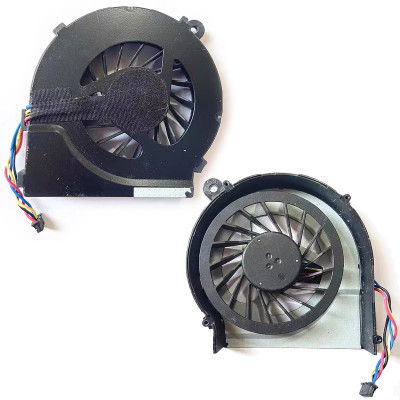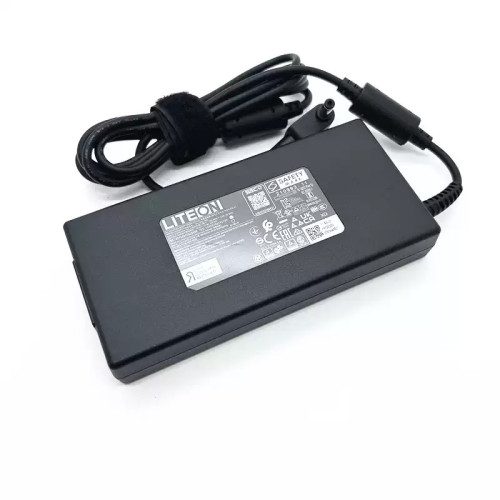
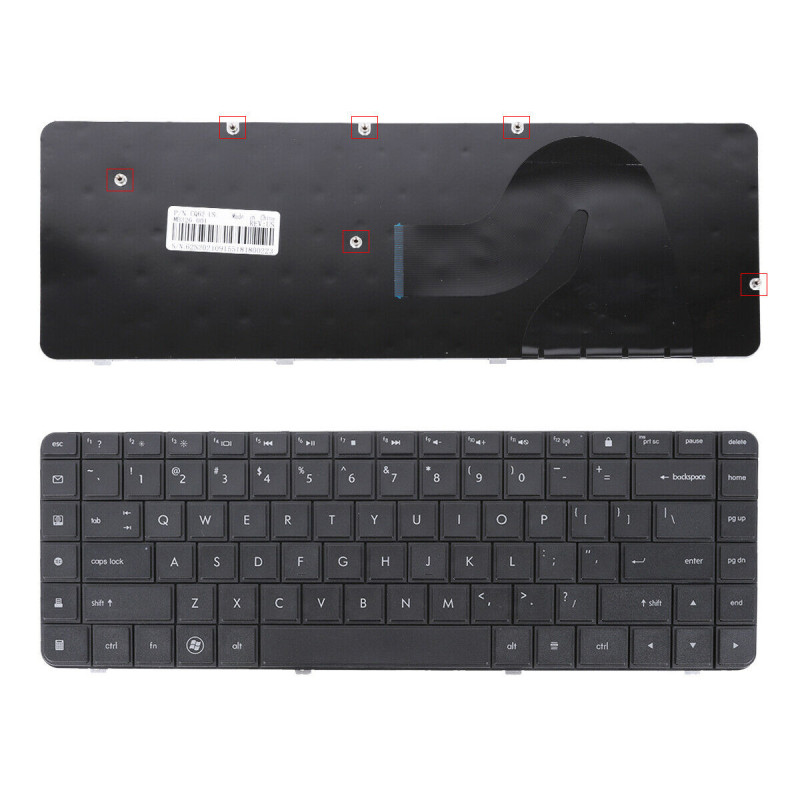
Watch official HP videos for installation, disassembly, and repair guidance.
Open HP Installation Guide File / Videos
Complete specifications for reference:
HP Compaq Presario CQ42
CQ42-100
CQ42-200
CQ42-300
CQ42-400
HP Compaq Presario CQ56
CQ56Z
CQ56-100
CQ56-200
CQ56Z-200
HP Compaq Presario CQ62
CQ62Z
CQ62-100
CQ62-200
CQ62-300
CQ62-400
CQ62Z-200
CQ62Z-300
CQ62-A
HP Compaq Presario G42
G42T
G42-200
G42-300
G42-400
G42T-200
G42T-300
G42T-400
HP Compaq Presario G56
G56-100
G56-200
HP Compaq Presario G62
G62M
G62T
G62X
G62-100 G62-200 G62-300 G62-400 G62-A
G62-B
G62M-300
G62T-100
G62T-250
G62T-350
G62X-400
Keyboard for HP COMPAQ PRESARIO CQ56 G62 – a high-quality replacement keyboard designed specifically for laptops.
Key specifications:
Compatibility: This keyboard is guaranteed to fit and its variants. Please verify your laptop’s exact model number (printed on the bottom label) before ordering.
Installation tip: Always disconnect the battery first. Note the orientation of the ribbon cable before removal – reversing it can damage the connector.
Warranty & Support: All products come with a 7‑day return policy and free technical support. If you have any compatibility questions, contact our team at info@pcspare.com.
SKU: LT-08319 | Last updated: 2026-09-20 00:35:46
Important: Layouts are not interchangeable – the key positions, Enter key shape, and modifier key sizes vary. Installing a US keyboard on a UK laptop will result in some keys not matching the keycaps, and the operating system may map the keys incorrectly (though you can change the keyboard layout in software).
How to verify: Check your original keyboard – look for the Enter key shape (wide horizontal vs tall vertical) and the position of the backslash key. If unsure, send us a photo of your original keyboard and we will confirm the layout.
If you need backlight, please choose a backlit version from our store.
If the cable has a reinforcing strip (a thicker plastic piece at the end), ensure this strip is positioned correctly – it usually indicates the insertion depth and orientation.
If you are unsure about the correct orientation, our installation video and photos can guide you – or contact our support for assistance.
Yes – please verify the following physical attributes to ensure a perfect fit:
Part number (PN) check: The PN on the back of the keyboard may differ from your original, but we guarantee full compatibility if the model and layout match. If you are unsure, send us a photo of the back of your original keyboard (showing the PN sticker) and we will confirm.
Important note on model variants: Some laptop models have different keyboard variants depending on the region and configuration (e.g., some have backlit, some do not; some have a fingerprint reader, some do not). Always check your original keyboard's features before ordering.
If you are unsure, contact our support with your laptop's exact model number and a photo of your original keyboard – we will confirm compatibility for you.
The keyboard connects to the motherboard via a ribbon cable that passes through a slot in the C Cover, plugging into a ZIF connector on the motherboard (usually labelled KEYBOARD, KBD, or J_KB).
Access: To replace the keyboard, you may need to remove the bottom cover (D Cover) or the bezel around the keyboard – depending on the model. Some laptops require removing the entire palmrest (C Cover).
Always consult your laptop's service manual for the specific removal method – forcing the keyboard can damage the clips or the C Cover.
Connection procedure:
If the keyboard has a separate backlight cable:
Do not force the cable – if it does not go in easily, check the orientation. Bent pins on the motherboard header can be difficult to repair.
Note: Keyboard replacement methods vary by laptop model. The steps below are general – refer to your laptop's service manual for model‑specific instructions.
For top‑mount keyboards (most common):
For bottom‑mount keyboards:
Common mistakes to avoid:
If you are unsure about any step, watch our installation video or consult your laptop's service manual.
Critical precautions:
Troubleshooting after installation:
If the problem persists: Contact our support with details about which keys are not working and photos of your keyboard installation – we will help diagnose if the keyboard is defective or incompatible.
For most laptops, no driver installation is needed – keyboards are standard HID (Human Interface Device) and are automatically recognized by Windows, macOS, and Linux.
However, there are a few exceptions:
Step‑by‑step for Windows users:
If you are using Linux or macOS, the keyboard should work plug‑and‑play – you may only need to adjust the layout settings in the system preferences.