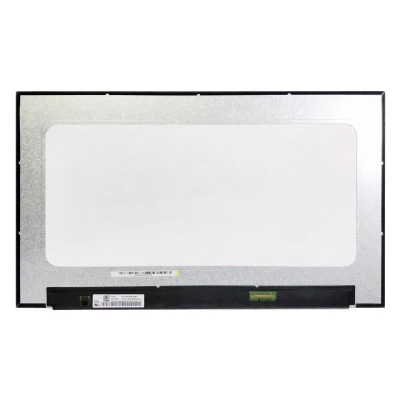

Complete specifications for reference:
DELL Vostro 15-3000 S
DELL Vostro 15-3500 (P90F / P90F005 / P90F006 )
DELL Vostro 15-3501 (P90F / P90F002 / P90F006 )
DELL Vostro 15-3510 (P112F / P112F001 / P112F002 / P112F003)
DELL Vostro 15-3511 (TAMBIEN PUEDE MONTAR HD)
DELL Vostro 15-3515 ( P112F / P112F005 )
DELL Vostro 15-5000 S
DELL Vostro 15-5501 ( P102F / P102F001 )
DELL Vostro 15-5502 ( P102F / P102F002 )
DELL Vostro 15-5581 ( P77F / P77F001 )
DELL Vostro 15-5590 ( P88F / P88F001 )
DELL Vostro 15 7000 / 15-7000 S
DELL Vostro 15-7590 ( P83F / P83F001 )
DELL Vostro 15-7591 ( P83F / P83F001 )
HP 250 G8 / G9
HP 255 G8 / G9
HP 255 G9 / G9
HP 256 G8 / G9
HP Omen 15-DH S
HP Omen 15-DHxxx S
HP Omen 15-EN S
HP Omen 15-ENxxx S
HP 15-EQ S
HP 15-EQxxx S
HP 15S-EQ S
HP 15S-EQxxx S
HP 15-FC S
HP 15-FCxxx S
HP 15-FD S
HP 15-FDxxx S
HP 15-FD0065NS
HP 15S-FQ S
HP 15S-FQxxx S
HP 15-GW S
HP 15-GWxxx S
HP Victus 15-FA s (tambien monta 144Hz de 40pin)
HP Victus 15-FAxxx S
LG ULTRA 15U70P s ***Monta también LCD rectangular FHD.
LG ULTRA 15U70P-J.AA78B
Medion Akoya E15423
Medion Akoya S6445
Medion Akoya S15449
Medion Akoya E15301 s
Medion Erazer Crawler E10
Medion Erazer Crawler E30E
MSI PS63 Modern 8SC S
MSI MS-16R1
MSI MS-16R2
MSI MS-16R3
Samsung GALAXY BOOK2 NP750XED S
Samsung GALAXY BOOK2 NP750XED-KB1CA
Samsung GALAXY BOOK2 NP750XFG S
Samsung GALAXY BOOK2 NP750XFG-KB2ES
Toshiba Dynabook Satellite PRO A50-J S
Toshiba Dynabook Satellite PRO C50-E S
Toshiba Dynabook Satellite PRO C50-G S
Toshiba Dynabook Satellite PRO C50-H S
Xiaomi Mi NoteBook PRO ( Xiaomi MI PRO 15.6" )
Lenovo V15-ADA 82C7 S
Acer Aspire 5 A515-54
Acer Aspire 5 A515-33
Acer Aspire 5 A515-43
Acer Aspire 5 A515-43G
Acer Aspire 5 A515-43K
Acer Aspire 5 A515-43KG
Acer Aspire 5 A515-44
Acer Aspire 5 A515-44G
Acer Aspire 5 A515-45
Acer Aspire 5 A515-45G
Acer Aspire 5 A515-46
Acer Aspire 5 A515-47
Acer Aspire 5 A515-52
Acer Aspire 5 A515-52G
Acer Aspire 5 A515-52K
Acer Aspire 5 A515-52KG
Acer Aspire 5 A515-53
Acer Aspire 5 A515-53G
Acer Aspire 5 A515-53K
Acer Aspire 5 A515-53KG
Acer Aspire 5 A515-54G
Acer Aspire 5 A515-54K
Acer Aspire 5 A515-54KG
Acer Aspire 5 A515-55
Acer Aspire 5 A515-55G
Acer Aspire 5 A515-56
Acer Aspire 5 A515-56G
Acer Aspire 5 A515-57
Acer Aspire 5 A515-44-R046
Acer Aspire 5 A515-44-R0A8
Acer Aspire 5 A515-44-R0BR
Acer Aspire 5 A515-44-R0F5
Acer Aspire 5 A515-44-R0FM
Acer Aspire 5 A515-44-R0GT
Acer Aspire 5 A515-44-R0KN
Acer Aspire 5 A515-44-R0NR
Acer Aspire 5 A515-44-R0PX
Acer Aspire 5 A515-44-R0QY
Acer Aspire 5 A515-44-R0SN
Acer Aspire 5 A515-44-R0SQ
Acer Aspire 5 A515-44-R0WX
Acer Aspire 5 A515-44-R0XW
Acer Aspire 5 A515-44-R0YB
Acer Aspire 5 A515-44-R0Z4
Acer Aspire 5 A515-44-R0ZN
Acer Aspire 5 A515-44-R158
Acer Aspire 5 A515-44-R176
Acer Aspire 5 A515-44-R17Q
Acer Aspire 5 A515-44-R19M
Acer Aspire 5 A515-44-R19V
Acer Aspire 5 A515-44-R1BU
Acer Aspire 5 A515-44-R1D6
Acer Aspire 5 A515-44-R1DM
Acer Aspire 5 A515-44-R1EP
Acer Aspire 5 A515-44-R1JE
Acer Aspire 5 A515-44-R1NW
Acer Aspire 5 A515-44-R1RQ
Acer Aspire 5 A515-44-R1UB
Acer Aspire 5 A515-44-R1XZ
Acer Aspire 5 A515-44-R208
Acer Aspire 5 A515-44-R21J
Acer Aspire 5 A515-44-R23D
Acer Aspire 5 A515-44-R27Y
Acer Aspire 5 A515-44-R2AK
Acer Aspire 5 A515-44-R2DE
Acer Aspire 5 A515-44-R2FS
Acer Aspire 5 A515-44-R2HP
Acer Aspire 5 A515-44-R2KF
Acer Aspire 5 A515-44-R2L1
Acer Aspire 5 A515-44-R2LN
Acer Aspire 5 A515-44-R2MB
Acer Aspire 5 A515-44-R2QE
Acer Aspire 5 A515-44-R2SA
Acer Aspire 5 A515-44-R2SD
Acer Aspire 5 A515-44-R2TC
Acer Aspire 5 A515-44-R2W7
Acer Aspire 5 A515-44-R2X2
Acer Aspire 5 A515-44-R2XN
Acer Aspire 5 A515-44-R2XV
Acer Aspire 5 A515-44-R2YZ
Acer Aspire 5 A515-44-R329
Acer Aspire 5 A515-44-R36K
Acer Aspire 5 A515-44-R38P
Acer Aspire 5 A515-44-R3KT
Acer Aspire 5 A515-44-R3L5
Acer Aspire 5 A515-44-R3M0
Acer Aspire 5 A515-44-R3PN
Acer Aspire 5 A515-44-R3T5
Acer Aspire 5 A515-44-R3TG
Acer Aspire 5 A515-44-R3YH
Acer Aspire 5 A515-44-R3ZW
Acer Aspire 5 A515-44-R415
Acer Aspire 5 A515-44-R419
Acer Aspire 5 A515-44-R41B
Acer Aspire 5 A515-44-R42X
Acer Aspire 5 A515-44-R44H
Acer Aspire 5 A515-44-R48W
Acer Aspire 5 A515-44-R4E8
Acer Aspire 5 A515-44-R4GM
Acer Aspire 5 A515-44-R4KH
Acer Aspire 5 A515-44-R4M5
Acer Aspire 5 A515-44-R4N1
Acer Aspire 5 A515-44-R4N6
Acer Aspire 5 A515-44-R4PR
Acer Aspire 5 A515-44-R4UN
Acer Aspire 5 A515-44-R4VR
Acer Aspire 5 A515-44-R4XH
Acer Aspire 5 A515-44-R4XX
Acer Aspire 5 A515-44-R4YN
Acer Aspire 5 A515-44-R4YQ
Acer Aspire 5 A515-44-R539
Acer Aspire 5 A515-44-R54F
Acer Aspire 5 A515-44-R54M
Acer Aspire 5 A515-44-R58H
Acer Aspire 5 A515-44-R5B5
Acer Aspire 5 A515-44-R5EJ
Acer Aspire 5 A515-44-R5K1
Acer Aspire 5 A515-44-R5QE
Acer Aspire 5 A515-44-R5QH
Acer Aspire 5 A515-44-R5U1
Acer Aspire 5 A515-44-R5U4
Acer Aspire 5 A515-44-R5WS
Acer Aspire 5 A515-44-R5XX
Acer Aspire 5 A515-44-R61A
Acer Aspire 5 A515-44-R61T
Acer Aspire 5 A515-44-R63Y
Acer Aspire 7 A715-41
Acer Aspire 7 A715-41G
Acer Aspire 7 A715-42
Acer Aspire 7 A715-42G
Acer Aspire 7 A715-43
Acer Aspire 7 A715-43G
Acer Aspire 7 A715-51G
Acer Aspire 7 A715-73
Acer Aspire 7 A715-73G
Acer Aspire 7 A715-74
Acer Aspire 7 A715-74G
Acer Aspire 7 A715-75
Acer Aspire 7 A715-75G
Acer Aspire 7 A715-76
Acer Aspire 7 A715-76G
Acer Aspire Vero AV15-51
Acer Aspire Vero AV15-51R
Acer Aspire Vero AV15-52
Acer Aspire Vero AV15-51-55K2
Acer Aspire Vero AV15-51-78SF
Acer Aspire Vero AV15-51-55CG
Acer Aspire Vero AV15-51-759L
Acer Aspire Vero AV15-51-5155
Acer Aspire Vero AV15-51-51EG
Acer Aspire Vero AV15-51-522W
Acer Aspire Vero AV15-51-547X
Acer Aspire Vero AV15-51-54QD
Acer Aspire Vero AV15-51-574G
Acer Aspire Vero AV15-51-732P
Acer Aspire Vero AV15-51-7555
Acer Aspire Vero AV15-51-75QQ
Acer Aspire Vero AV15-51-7739
Acer Extensa 15 215-21
Acer Extensa 15 215-21G
Acer Extensa 15 215-22
Acer Extensa 15 215-22G
Acer Extensa 15 215-31
Acer Extensa 15 215-31G
Acer Extensa 15 215-32
Acer Extensa 15 215-32G
Acer Extensa 15 215-51
Acer Extensa 15 215-51G
Acer Extensa 15 215-51K
Acer Extensa 15 215-51KG
Acer Extensa 15 215-52
Acer Extensa 15 215-52G
Acer Extensa 15 215-53
Acer Extensa 15 215-53G
Acer Extensa 15 215-54
Acer Extensa 15 215-54G
Acer Extensa 15 215-55
Acer Extensa 15 EX215-52
Acer Extensa 15 EX215-52-305B
Acer Extensa 15 EX215-52-3072
Acer Extensa 15 EX215-52-30GD
Acer Extensa 15 EX215-52-30X1
Acer Extensa 15 EX215-52-312N
Acer Extensa 15 EX215-52-3147
Acer Extensa 15 EX215-52-31HL
Acer Extensa 15 EX215-52-31KM
Acer Extensa 15 EX215-52-31MG
Acer Extensa 15 EX215-52-31QC
Acer Extensa 15 EX215-52-31UK
Acer Extensa 15 EX215-52-31VA
Acer Extensa 15 EX215-52-31VH
Acer Extensa 15 EX215-52-324T
Acer Extensa 15 EX215-52-32B8
Acer Extensa 15 EX215-52-330D
Acer Extensa 15 EX215-52-330D
Acer Nitro 5 AN515-43
Acer Nitro 5 AN515-44
Acer Nitro 5 AN515-45
Acer Nitro 5 AN515-54
Acer Nitro 5 AN515-55
Acer Nitro 5 AN515-56
Acer Predator Helios PH315-52
Acer Swift 3 SF315-52
Acer Swift 3 SF315-52G
Acer Travelmate P5 P50-5
Acer Travelmate P5 P50-51G
Acer Travelmate P2 P215-41
Acer Travelmate P2 P215-41G
Acer Travelmate P2 P215-41G2
Acer Travelmate P2 P215-41G3
Acer Travelmate P2 P215-51
Acer Travelmate P2 P215-51G
Acer Travelmate P2 P215-52
Acer Travelmate P2 P215-52G
Acer Travelmate P2 P215-53
Acer Travelmate P2 P215-53G
Acer TravelMate Vero TMV15-51
Acer N20C5
Acer ChromeBook 315 CB315-3H
Acer ChromeBook 315 CB315-4H
Acer ChromeBook 715 CB715-1W
Lenovo ThinkPad T15G 20UR0005IX
Lenovo ThinkPad T15G 20UR0005MB
Lenovo ThinkPad T15G 20UR0005MD
Lenovo ThinkPad T15G 20UR0005MH
Lenovo ThinkPad T15G 20UR0005ML
Lenovo ThinkPad T15G 20UR0005MN
Lenovo ThinkPad T15G 20UR0005MS
Lenovo ThinkPad T15G 20UR0005MX
Lenovo ThinkPad T15G 20UR0005MZ
... (lista extensa completa disponible en la ficha)
Acer Aspire 5 A515-57G
Acer Aspire Vero AV15-51-7755
Acer Aspire Vero AV15-51-78H5
Acer Aspire Vero AV15-51-78SE
Acer Extensa 15 EX215-52-333F
Acer Extensa 15 EX215-52-335W
Acer Extensa 15 EX215-52-33GS
Acer Extensa 15 EX215-52-33MM
Acer Extensa 15 EX215-52-33ZG
Acer Extensa 15 EX215-52-34U4
Acer Extensa 15 EX215-52-358X
Acer Extensa 15 EX215-52-359L
Acer Extensa 15 EX215-52-35BG
Acer Extensa 15 EX215-52-35LZ
Acer Extensa 15 EX215-52-35QV
Acer Extensa 15 EX215-52-35X8
Acer Extensa 15 EX215-52-368N
Acer Extensa 15 EX215-52-36PP
Acer Extensa 15 EX215-52-376Y
Acer Extensa 15 EX215-52-37LC
Acer Extensa 15 EX215-52-37SE
Acer Extensa 15 EX215-52-37WL
Acer Extensa 15 EX215-52-37XL
Acer Extensa 15 EX215-52-3860
Acer Extensa 15 EX215-52-38CR
Acer Extensa 15 EX215-52-38L0
Acer Extensa 15 EX215-52-38MH
Acer Extensa 15 EX215-52-38Q7
Acer Extensa 15 EX215-52-38YG
Acer Extensa 15 EX215-52-38YV
Acer Extensa 15 EX215-52-392Y
Acer Extensa 15 EX215-52-396J
Acer Extensa 15 EX215-52-397U
Acer Extensa 15 EX215-52-39CU
Acer Extensa 15 EX215-52-39Z0
Acer Extensa 15 EX215-52-507R
Acer Extensa 15 EX215-52-50GT
Acer Extensa 15 EX215-52-50JT
Acer Extensa 15 EX215-52-50KX
Acer Extensa 15 EX215-52-50ND
Acer Extensa 15 EX215-52-50S5
Acer Extensa 15 EX215-52-50SH
Acer Extensa 15 EX215-52-50ZC
Acer Extensa 15 EX215-52-517E
Acer Extensa 15 EX215-52-519Y
Acer Extensa 15 EX215-52-51BS
Acer Extensa 15 EX215-52-51MD
Acer Extensa 15 EX215-52-51QC
Acer Extensa 15 EX215-52-5236
Acer Extensa 15 EX215-52-52DX
Acer Extensa 15 EX215-52-52LX
Acer Extensa 15 EX215-52-537L
Acer Extensa 15 EX215-52-53C0
Acer Extensa 15 EX215-52-53T9
Acer Extensa 15 EX215-52-53VY
Acer Extensa 15 EX215-52-53W9
Acer Extensa 15 EX215-52-53XM
Acer Extensa 15 EX215-52-54CZ
Acer Extensa 15 EX215-52-54D6
Acer Extensa 15 EX215-52-54G2
Acer Extensa 15 EX215-52-54NE
Acer Extensa 15 EX215-52-54X5
Acer Extensa 15 EX215-52-55DJ
Acer Extensa 15 EX215-52-55GL
Acer Extensa 15 EX215-52-55RX
Acer Extensa 15 EX215-52-560F
Acer Extensa 15 EX215-52-568Y
Acer Extensa 15 EX215-52-56JV
Acer Extensa 15 EX215-52-56SC
Acer Extensa 15 EX215-52-57HT
Acer Extensa 15 EX215-52-57S6
Acer Extensa 15 EX215-52-57U2
Acer Extensa 15 EX215-52-57UE
Acer Extensa 15 EX215-52-57XE
Acer Extensa 15 EX215-52-586A
Acer Extensa 15 EX215-52-586W
Acer Extensa 15 EX215-52-58DN
Acer Extensa 15 EX215-52-58EX
Acer Extensa 15 EX215-52-597U
Acer Extensa 15 EX215-52-59VW
Acer Extensa 15 EX215-52-59W0
Acer Extensa 15 EX215-52-7009
Acer Extensa 15 EX215-52-72C6
Acer Extensa 15 EX215-52-72TS
Acer Extensa 15 EX215-52-73YA
Acer Extensa 15 EX215-52-74P8
Samsung Galaxy Book4 15 NP750XGJ Series
Samsung Galaxy Book4 15 NP750XGJ-KG2ES
Samsung Galaxy Book4 15 NP750XGJ-KG4ES
Samsung Galaxy Book4 15 NP750XGJ-KG5ES
B156HAN02.2 HW0A LCD screen panel – a high‑quality LCD panel designed for laptops, delivering crisp visuals and accurate color reproduction.
Key specifications:
Compatibility: Guaranteed fit for . Double‑check the connector width and pitch before installation.
Installation tip: Handle the screen by the edges, avoid touching the glass, and route the cable carefully through the hinge to prevent pinching.
Warranty & Support: All products come with a 7‑day return policy and free technical support. If you have any compatibility questions, contact our team at info@pcspare.com.
SKU: LT-7857 | Last updated: 2026-10-21 07:25:45
If you are upgrading to a higher resolution, we recommend checking your laptop's service manual or online forums for confirmed compatibility.
How to verify: Check the connector on your original screen – look for printed labels (e.g., "30P 0.4mm") or measure with a ruler. Compare with our product photos.
If you are unsure, send us a clear photo of your original screen's connector – we can match it for you.
We ship all screens in the grade stated on the product page. All screens are tested for functionality – no lines, no flickering, and backlight is working.
If you require a specific grade, please check the product description or contact us before ordering.
Our warranty covers manufacturing defects only – physical damage during installation is not covered.
Accessing the screen requires removing the bezel – some models also require removing the entire display assembly (lid) from the base to avoid damaging cables.
Critical: The cable must be inserted all the way – if it is not fully seated, you will get a partial display or no image. Do not force the cable; if it does not go in easily, check the orientation.
Always disconnect the battery before connecting or disconnecting the LCD cable to avoid short circuits.
Note: This is a delicate operation – proceed with caution. If you are not confident, consider using a professional repair service.
Common pitfalls to avoid:
Watch our installation video or consult your laptop's service manual for model‑specific details.
Critical precautions:
Troubleshooting – what if the screen does not work after installation?
If you have tried all the above and the problem persists: Contact our support with photos of the screen issue and your laptop model – we will help diagnose and arrange a replacement if necessary.