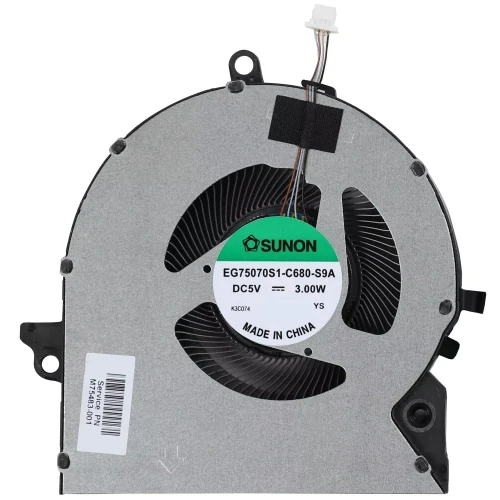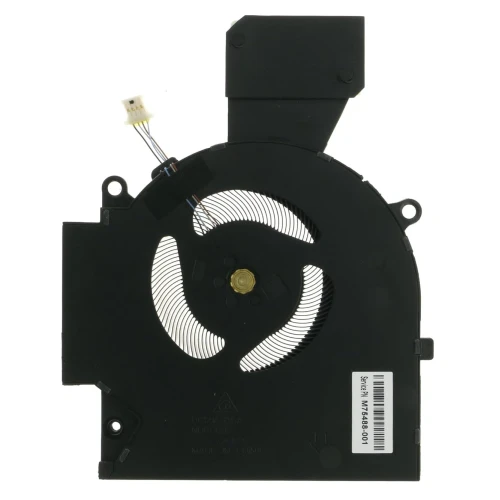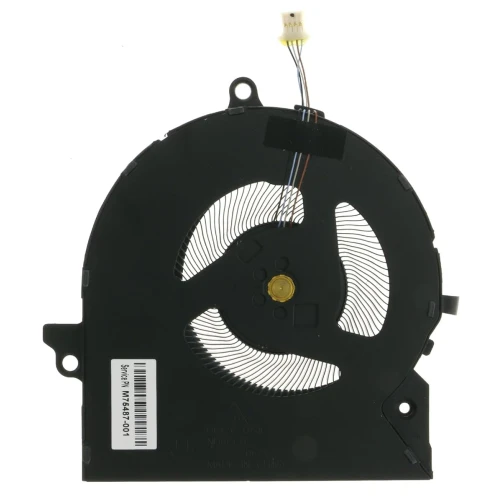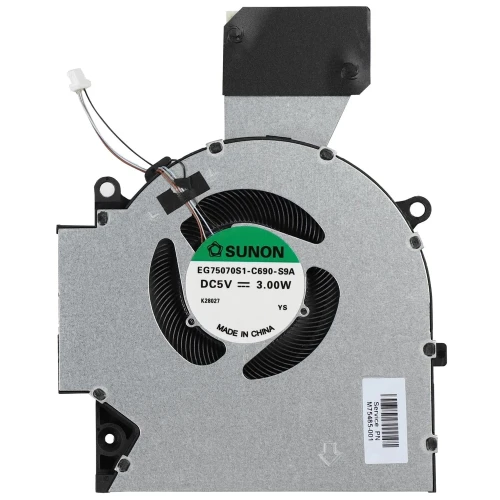
Watch official Acer videos for installation, disassembly, and repair guidance.
Open Acer Installation Guide File / Videos
Complete specifications for reference:
Acer Aspire A114-31
A114-31-C22L
A114-31-C7VN NX.SHXEX.038
A114-31-P908
A114-32
A114-32-C6E1
A314-21
A314-31
A314-31-C34Q
A314-31-C9FR
A314-31-P2ZB
A314-32
E5-422
E5-422G
E5-432
E5-432G
E5-452G
E5-473
E5-473G
E5-473T
E5-473TG
E5-474
E5-474G
E5-475
E5-475G
E5-491G
E5-491G
ES1-332
ES1-332-C89V
ES1-420
ES1-421
ES1-422
ES1-432
ES1-432-C2W8
ES1-433
ES1-433G
Acer Swift Ultrabook SF314-38DN
SF314-51
SF314-51-30Q
SF314-51-30QN
SF314-51-34W
SF314-51-36PG
SF314-51-370
SF314-51-370P
SF314-51-52H
SF314-51-59HT
SF314-51-70S1
SF314-51-73T
SF314-51-74V
SF314-51-74VQ
SF314-51-7946
Acer TravelMate P2410
P2410 NX.VGTEB.005
P2410-G2-M
P2410-G2-M-340X
P2410-G2-M-52HD
P2410-G2-M-53HD
p2410-G2-M-8250U
P2410-G2-MG-53DJ
P2410-G2-MG-82E6
P2410-M
P248-M
P248-MG
P249-G2-M
P249-G2-M-711F
P249-G2-MG
P249-G3-M
P249-M
P249-MG
P449-G2-M
P449-G2-MG
P449-G3-M
P449-G3-MG
P449-M
P449-M-54MU
P449-M-74TW
P449-MG
P449-MG-56T6
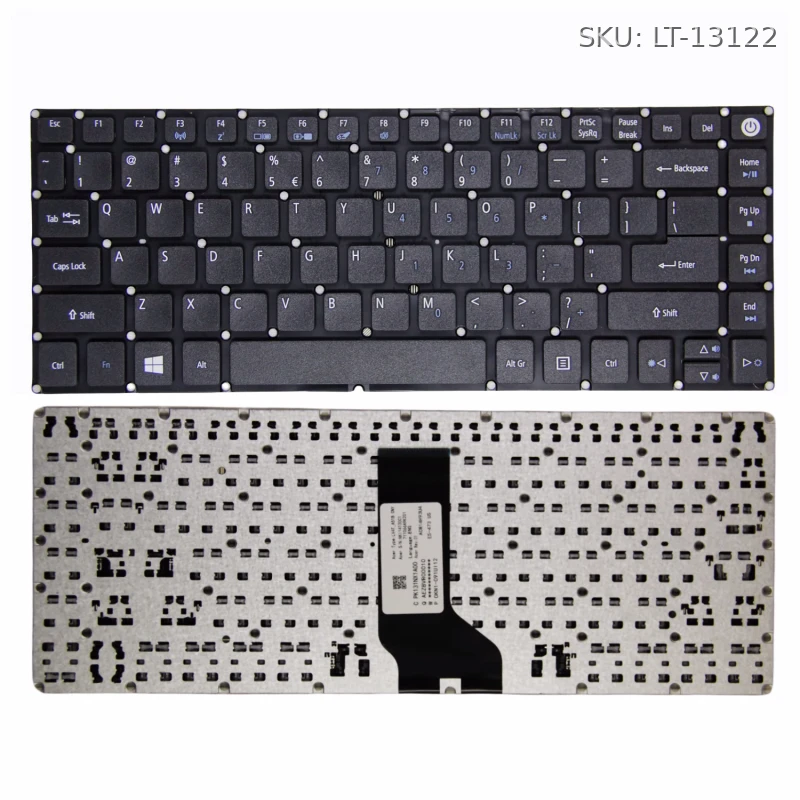
Keyboard for Acer E5-473 E5 422G 491G 474G 475G 432 452G K4000 original – a high-quality replacement keyboard designed specifically for laptops.
Key specifications:
Compatibility: This keyboard is guaranteed to fit and its variants. Please verify your laptop’s exact model number (printed on the bottom label) before ordering.
Installation tip: Always disconnect the battery first. Note the orientation of the ribbon cable before removal – reversing it can damage the connector.
Warranty & Support: All products come with a 7‑day return policy and free technical support. If you have any compatibility questions, contact our team at info@pcspare.com.
SKU: LT-13122 | Last updated: 2026-10-21 07:25:58
Important: Layouts are not interchangeable – the key positions, Enter key shape, and modifier key sizes vary. Installing a US keyboard on a UK laptop will result in some keys not matching the keycaps, and the operating system may map the keys incorrectly (though you can change the keyboard layout in software).
How to verify: Check your original keyboard – look for the Enter key shape (wide horizontal vs tall vertical) and the position of the backslash key. If unsure, send us a photo of your original keyboard and we will confirm the layout.
If you need backlight, please choose a backlit version from our store.
If the cable has a reinforcing strip (a thicker plastic piece at the end), ensure this strip is positioned correctly – it usually indicates the insertion depth and orientation.
If you are unsure about the correct orientation, our installation video and photos can guide you – or contact our support for assistance.
Yes – please verify the following physical attributes to ensure a perfect fit:
Part number (PN) check: The PN on the back of the keyboard may differ from your original, but we guarantee full compatibility if the model and layout match. If you are unsure, send us a photo of the back of your original keyboard (showing the PN sticker) and we will confirm.
Important note on model variants: Some laptop models have different keyboard variants depending on the region and configuration (e.g., some have backlit, some do not; some have a fingerprint reader, some do not). Always check your original keyboard's features before ordering.
If you are unsure, contact our support with your laptop's exact model number and a photo of your original keyboard – we will confirm compatibility for you.
The keyboard connects to the motherboard via a ribbon cable that passes through a slot in the C Cover, plugging into a ZIF connector on the motherboard (usually labelled KEYBOARD, KBD, or J_KB).
Access: To replace the keyboard, you may need to remove the bottom cover (D Cover) or the bezel around the keyboard – depending on the model. Some laptops require removing the entire palmrest (C Cover).
Always consult your laptop's service manual for the specific removal method – forcing the keyboard can damage the clips or the C Cover.
Connection procedure:
If the keyboard has a separate backlight cable:
Do not force the cable – if it does not go in easily, check the orientation. Bent pins on the motherboard header can be difficult to repair.
Note: Keyboard replacement methods vary by laptop model. The steps below are general – refer to your laptop's service manual for model‑specific instructions.
For top‑mount keyboards (most common):
For bottom‑mount keyboards:
Common mistakes to avoid:
If you are unsure about any step, watch our installation video or consult your laptop's service manual.
Critical precautions:
Troubleshooting after installation:
If the problem persists: Contact our support with details about which keys are not working and photos of your keyboard installation – we will help diagnose if the keyboard is defective or incompatible.
For most laptops, no driver installation is needed – keyboards are standard HID (Human Interface Device) and are automatically recognized by Windows, macOS, and Linux.
However, there are a few exceptions:
Step‑by‑step for Windows users:
If you are using Linux or macOS, the keyboard should work plug‑and‑play – you may only need to adjust the layout settings in the system preferences.