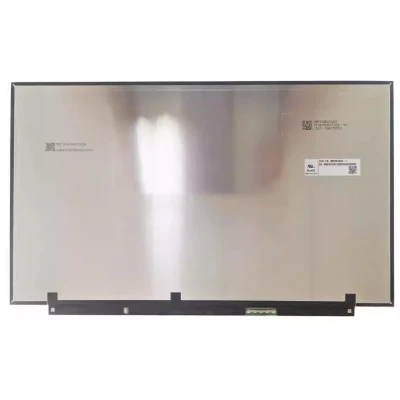
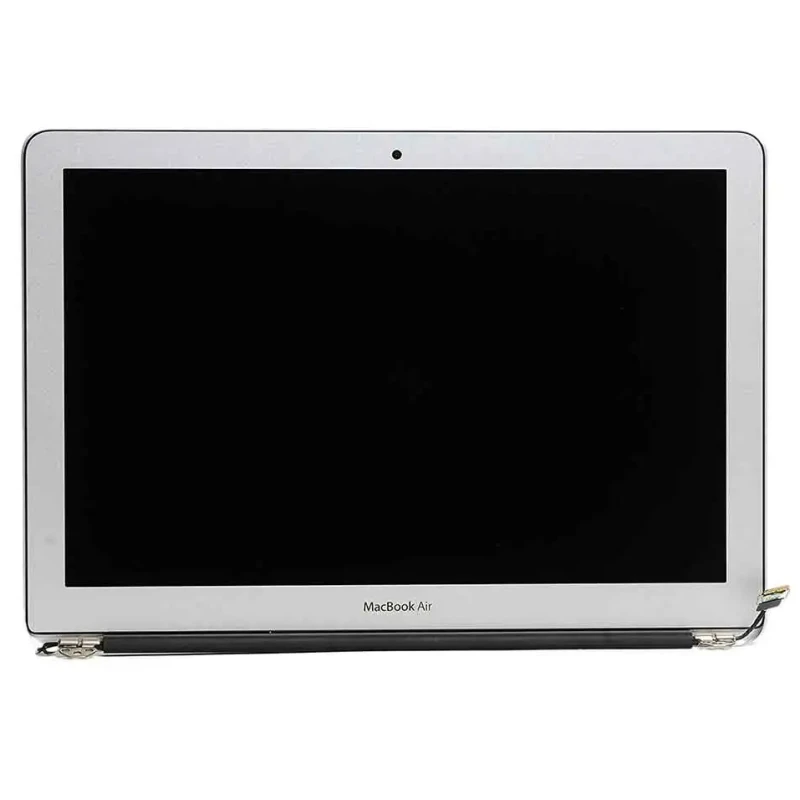

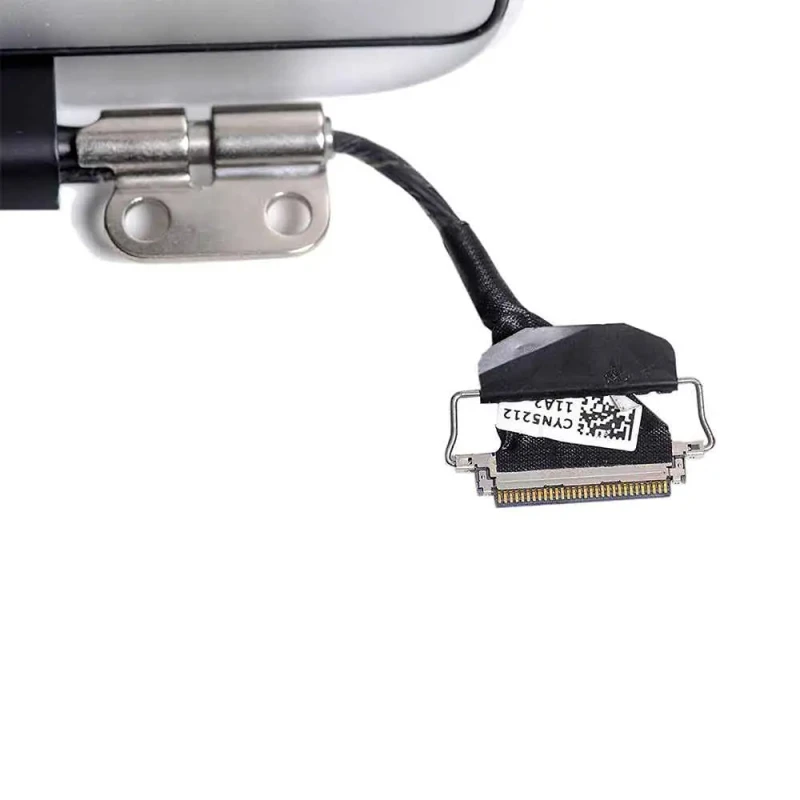


Complete specifications for reference:
MacBook Air A1466 2013
MacBook Air A1466 2014
MacBook Air A1466 2015
MacBook Air A1466 2017
MD760LL/A
MD760LL/B
MF068LL/A
MJVE2LL/A
MQD32LL/A
Z0UU1LL/A
MD761LL/A
MD761LL/B
MJVG2LL/A
MMGF2LL/A
MQD42LL/A
MQD52LL/A
EMC2632
EMC2925
EMC3178
661-7475
661-02397
MacBook Air A1466 2013 2014 2015 2017 LCD touch screen display full assembly – a high‑quality LCD panel designed for laptops, delivering crisp visuals and accurate color reproduction.
Key specifications:
Compatibility: Guaranteed fit for . Double‑check the connector width and pitch before installation.
Installation tip: Handle the screen by the edges, avoid touching the glass, and route the cable carefully through the hinge to prevent pinching.
Warranty & Support: All products come with a 7‑day return policy and free technical support. If you have any compatibility questions, contact our team at info@pcspare.com.
SKU: LT-10028290 | Last updated: 2026-10-21 07:27:01
If you are upgrading to a higher resolution, we recommend checking your laptop's service manual or online forums for confirmed compatibility.
How to verify: Check the connector on your original screen – look for printed labels (e.g., "30P 0.4mm") or measure with a ruler. Compare with our product photos.
If you are unsure, send us a clear photo of your original screen's connector – we can match it for you.
If you are replacing a non‑touch screen with a touchscreen, you will also need to replace the LCD cable and possibly the bezel (which may have a different frame). We recommend checking your laptop's original configuration.
We ship all screens in the grade stated on the product page. All screens are tested for functionality – no lines, no flickering, and backlight is working.
If you require a specific grade, please check the product description or contact us before ordering.
Our warranty covers manufacturing defects only – physical damage during installation is not covered.
Accessing the screen requires removing the bezel – some models also require removing the entire display assembly (lid) from the base to avoid damaging cables.
Critical: The cable must be inserted all the way – if it is not fully seated, you will get a partial display or no image. Do not force the cable; if it does not go in easily, check the orientation.
Always disconnect the battery before connecting or disconnecting the LCD cable to avoid short circuits.
Note: This is a delicate operation – proceed with caution. If you are not confident, consider using a professional repair service.
Common pitfalls to avoid:
Watch our installation video or consult your laptop's service manual for model‑specific details.
Critical precautions:
Troubleshooting – what if the screen does not work after installation?
If you have tried all the above and the problem persists: Contact our support with photos of the screen issue and your laptop model – we will help diagnose and arrange a replacement if necessary.